All /
How to Download Your Invoices
You can easily view and download copies of your invoices directly from your account area at any time.
-
Log in to your account on our website.
-
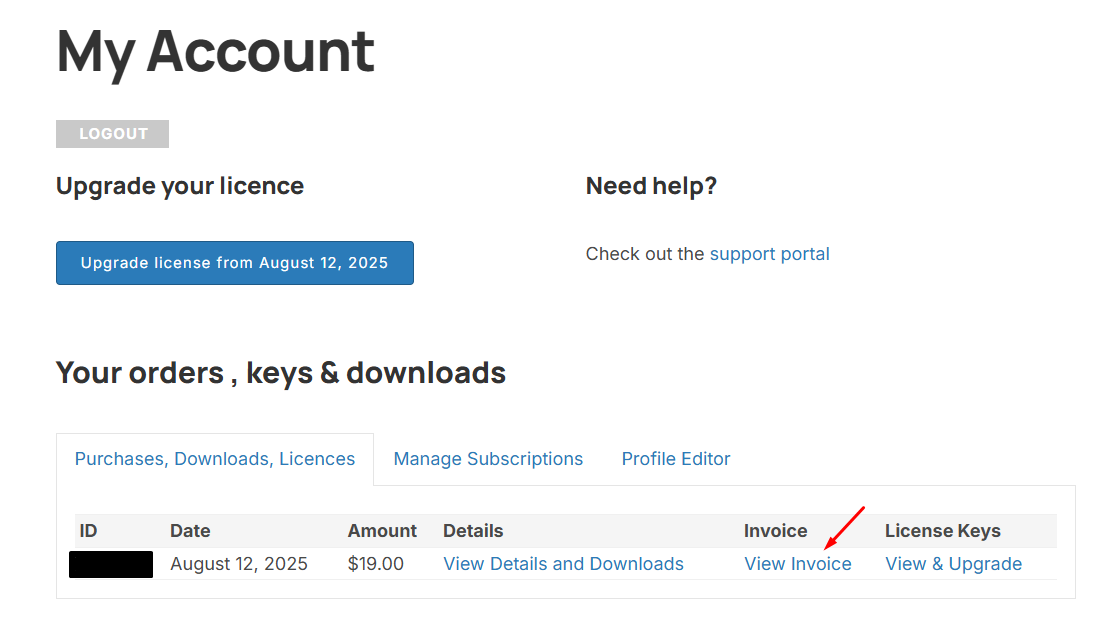
From your dashboard, locate the section titled "Your orders, keys & downloads".
-
Find the relevant order (e.g., Order #12345).
-
In the "Invoice" column for that order, click the "View Invoice" link.
-
This will open your invoice. You can then print it or save it as a PDF for your records.
For EU Customers: How to Add Your Tax/VAT Number to an Invoice
-
On the invoice page, click the "Update" button.
-
You will be taken to a form where you can edit all your billing information.
-
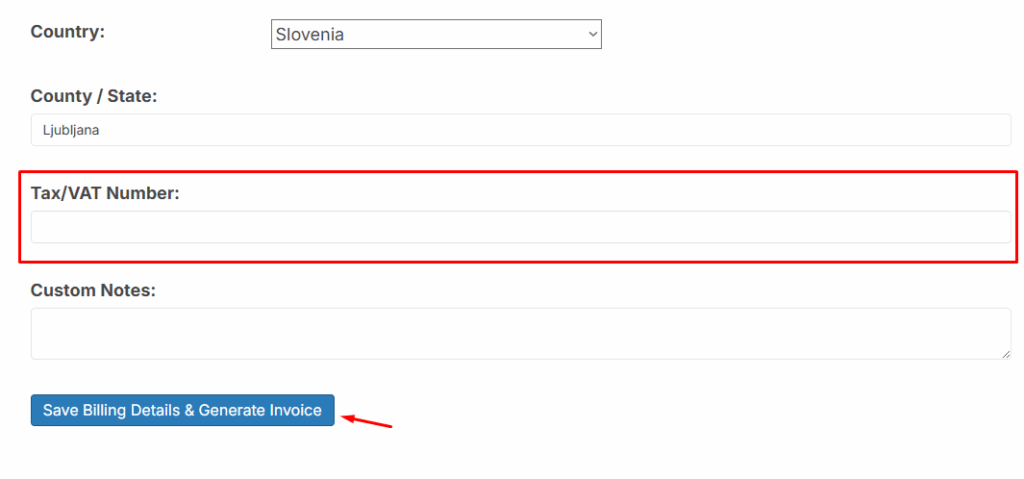
Ensure your Country is correctly set (e.g., Slovenia).
-
In the dedicated "Tax/VAT Number" field, enter your official VAT identification number.
-
-
Scroll down and click the green "Save Billing Details & Generate Invoice" button.
-
Download Your New Invoice: Your official invoice will now be updated with your VAT details. You can then download the new PDF version for your accounting records.