
Testing the Position of Elements: Moving an Element in a Code Test
Teams Included on the Teams plan. Not available on the Lite version. Upgrade →
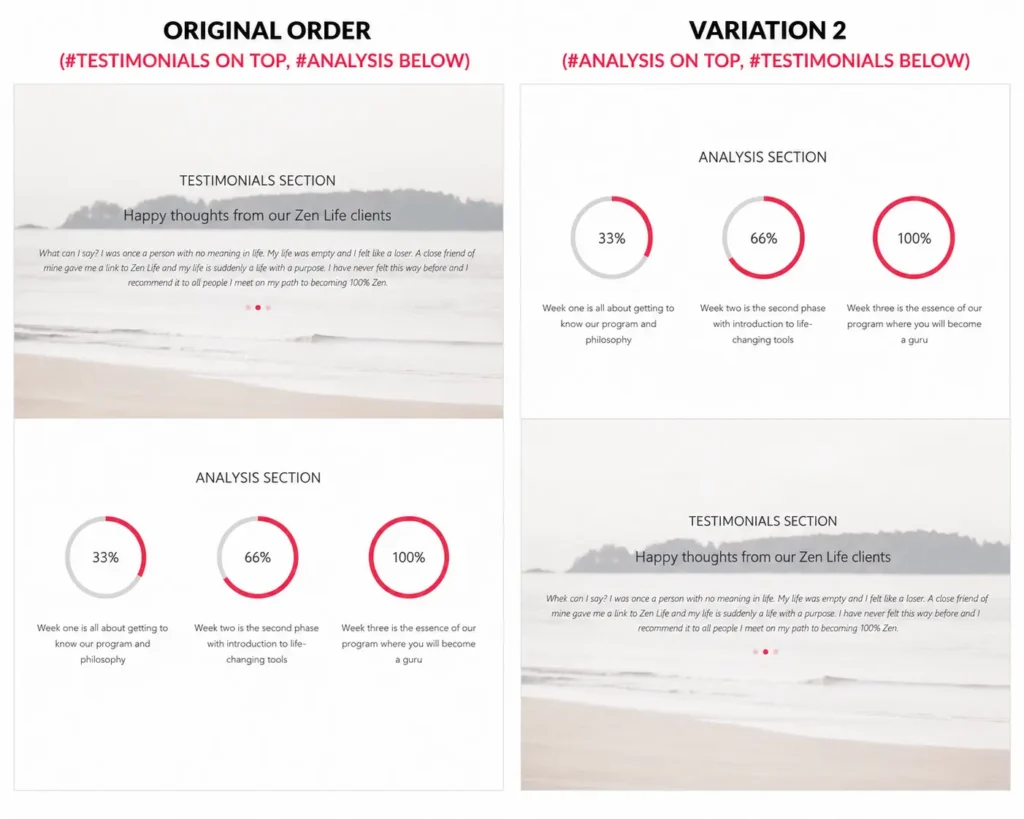
Sometimes you do not need to rewrite copy or swap an image. You just want to test whether an existing element performs better in a different position.
For example, you might want to test whether a testimonial block works better directly underneath your main call to action, or whether a guarantee message should appear before the pricing table instead of after it.
You can do this with a Code Test in AB Split Test by moving an existing element after another element when a specific test variation is active.
STEP 1: Create a Code Test and note your body classes
- Go to AB Split Test > New Test
- Add a title for your test
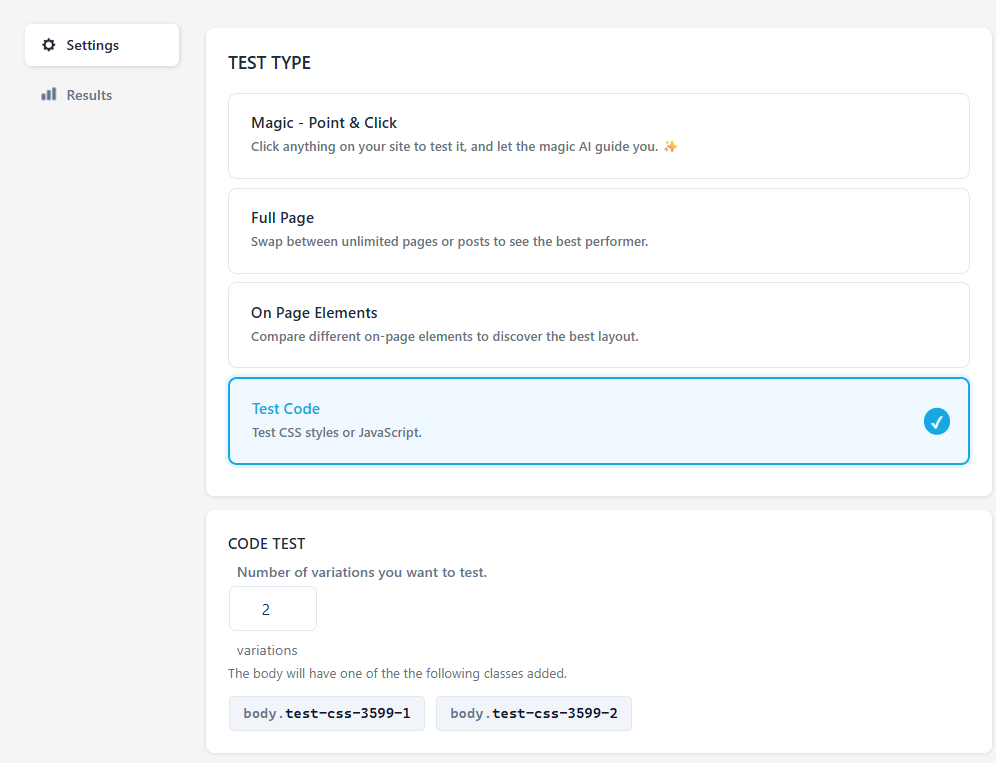
- Select Test Code as the test type
- Under Code Test, set the number of variations you want to test (e.g. 2)
- AB Split Test will generate body classes for each variation. Note these down as you will need them in the snippet.
For example, if your test ID is 456 and you have 2 variations, you will see:
body.test-css-456-1 body.test-css-456-2
- Set your conversion goal
- Click Launch Test
Step 2: Add the snippet to your site
-
Paste this code on your site wherever you normally input custom code. If you don't have a way to add code to your site yet, you can use a code editor plugin.
STEP 3: Verify it's working
Before testing, make sure the sections you want to move have the correct CSS IDs set in your page builder. For example, if you are moving #testimonials, the section must have testimonials set as its CSS ID in your page builder's Advanced settings.
Once confirmed:
- Visit your page in an incognito or private browser window while logged out. Admins are excluded from tests by default.
- Refresh a few times until you land on variation 2 where the move should happen.
- Confirm the element has moved to the new position.
- Check your test Results tab in WordPress admin and confirm a visit was recorded.
Example Snippet
Paste this JavaScript into the variation where you want the element move to happen.
(function () {
  // The AB Split Test ID.
  // You can find this in the Code Test body class shown in the test admin.
  //
  // e.g. test-css-{testId}-{variationNumber} test-css-123-2
  // var testId = 123;

  // 1 = first variation, 2 = second variation, etc.
  var variationNumber = 2;

  // The element you want to move.
  // This can be an ID, class, or any valid CSS selector.
  var elementToMoveSelector = '#testimonials';

  // The element that should appear directly before the moved element.
  // The moved element will be placed immediately after this target.
  var targetElementSelector = '#analysis';

// shouldn't need to change anything else. Paste this code in your website head for the least flicker

  /**
   * Moves an existing DOM element directly after another element.
   *
   * This moves the original element instead of cloning or rebuilding it,
   * which helps preserve existing event listeners, form state, and data
   * attached to that element.
   *
   * Returns true if the element exists and is moved or already in place.
   * Returns false if either selector cannot be found.
   */
  function abstMoveElementAfter(elementToMoveSelector, targetElementSelector) {
    var elementToMove = document.querySelector(elementToMoveSelector);
    var targetElement = document.querySelector(targetElementSelector);

    if (!elementToMove || !targetElement || elementToMove === targetElement) {
      return false;
    }

    // If it is already directly after the target, do nothing.
    if (targetElement.nextElementSibling === elementToMove) {
      return true;
    }

    // Move the original node after the target element.
    targetElement.parentNode.insertBefore(elementToMove, targetElement.nextSibling);

    // Refresh animations, sliders, and layout-aware scripts.
    window.dispatchEvent(new Event('resize'));

    return true;
  }

  /**
   * Runs after AB Split Test has selected the visitor's variation.
   *
   * The move only happens when the selected Code Test variation has added
   * the expected body class.
   */
  function runAbstMove() {
    var variationBodyClass = 'test-css-' + testId + '-' + variationNumber;

    if (!document.body.classList.contains(variationBodyClass)) {
      return;
    }

    abstMoveElementAfter(elementToMoveSelector, targetElementSelector);
  }

  // AB Split Test fires this event after test setup is complete.
  document.addEventListener('ab-test-setup-complete', runAbstMove);

  // Fallback for cases where this snippet loads after the event already fired.
  if (document.body && document.body.classList.contains('ab-test-setup-complete')) {
    runAbstMove();
  }
})();
Example
If your Code Test admin shows this variation class:
body.test-css-456-2And you want to move #trust-badges directly underneath #main-cta, use:
var testId = 456;
var variationNumber = 2;

var elementToMoveSelector = '#trust-badges';
var targetElementSelector = '#main-cta';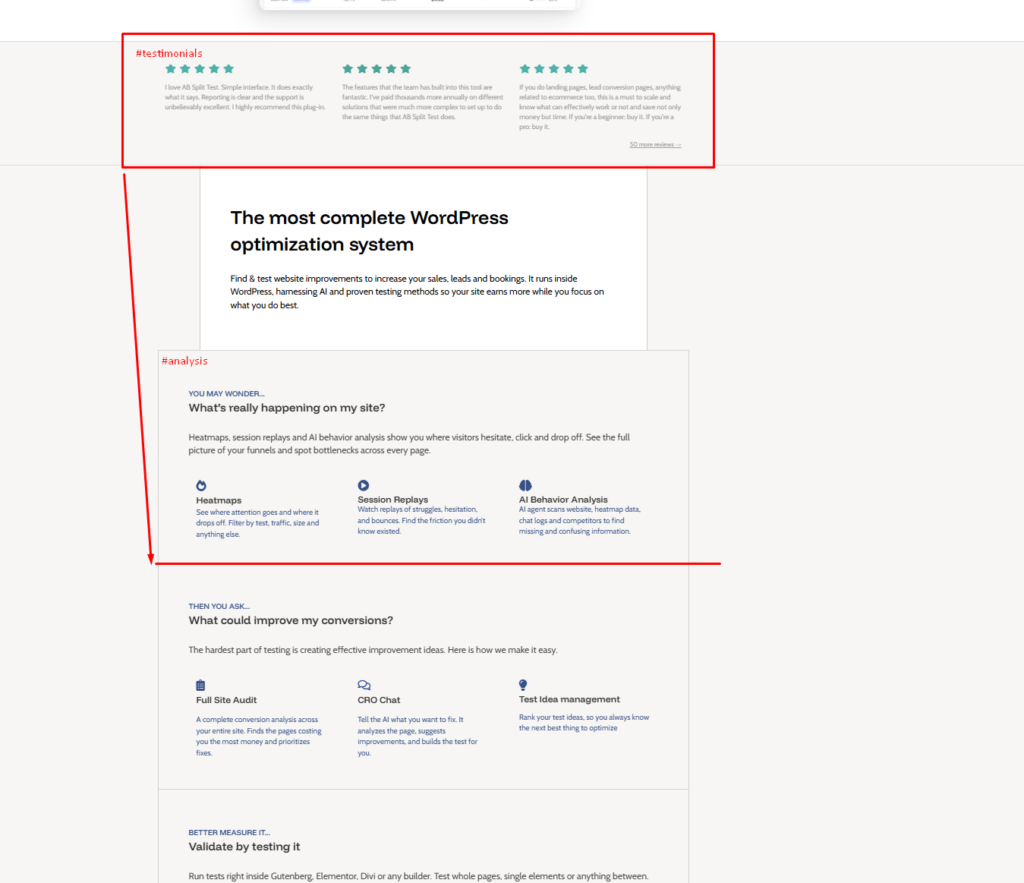
Will This Break Click Events or JavaScript?
Usually, no.
This snippet moves the original DOM element. It does not clone the element, replace its HTML, or rebuild it with innerHTML. That means event listeners attached directly to the moved element usually remain intact.
However, moving elements can still affect behavior that depends on where the element lives in the page. Check carefully if the element contains:
- Forms
- Sliders or carousels
- Maps
- Videos
- Popups
- Scripts that depend on the original parent element
- CSS that depends on the old page structure
The resize event at the end helps many sliders, animations, and layout-aware scripts recalculate after the move.