
How to Set Up a Full Page Split Test in AB Split Test
Full Page Split Tests in 60 seconds!
A Full Page Split Test helps you compare two or more entire pages to see which one performs better. AB Split Test automatically sends visitors to different versions of your page and tracks which one gets better results.
Step 1: Open AB Split Test in Your WordPress Dashboard
- In the left-hand menu, scroll down and click AB Split Test.
- Click New Test to create a new test.
- Enter a name for your test (e.g., “Homepage Redesign Test”)
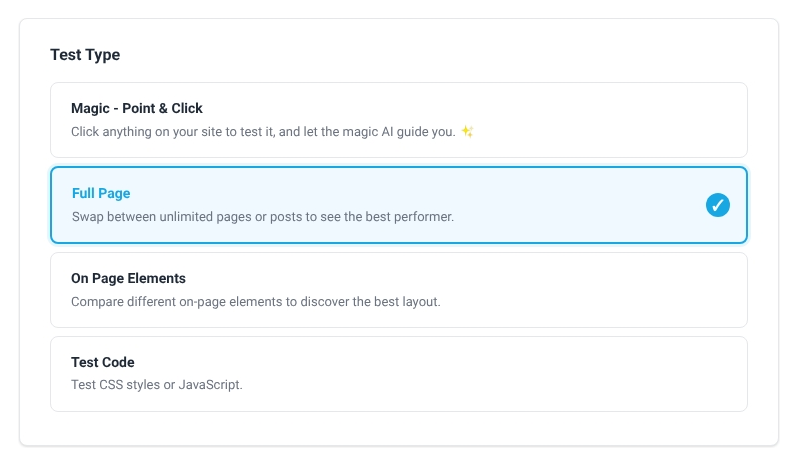
- Under Test Type, select Full Page Test.
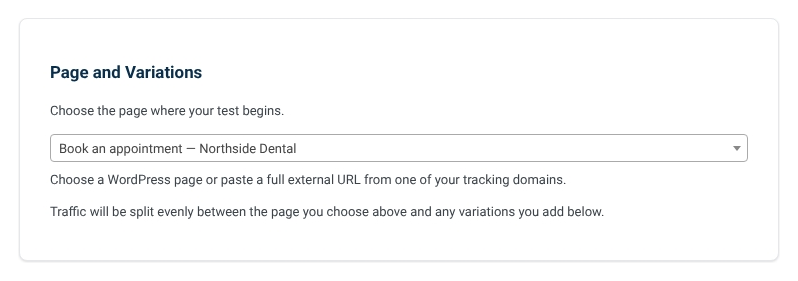
Step 2: Pick Your Starting Page
The Default Page is the original page you're testing against. This is usually a page you want to improve.
- If you already have a live page, use that as your default.
- If you’re starting from scratch, just pick the version you like best.
Step 3: Page Variations (The Pages You’re Testing)
These are the alternative pages you want to compare against the Default Page.
- You can test as many variations as you want (A/B, A/B/C, etc.).
- Each variation should have its own unique URL.
- Variations might include different designs, layouts, content, or CTAs (Call-to-Actions).

Step 4: Set a Conversion Goal
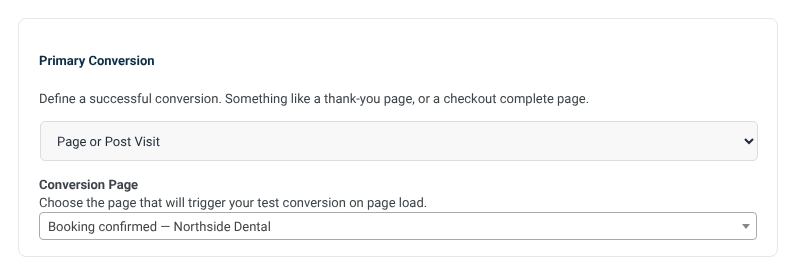
To measure which page performs best, you need to track conversions. AB Split Test lets you choose how to track a successful action:
- Drag in a Conversion Block or Module (track clicks or actions)
- Link to a specific page (count visits to a thank-you page, checkout page, etc.)
- Add a Conversion Pixel (same domain) or Fingerprint Pixel (other domains) to an external page
- Choose a page from your website's list
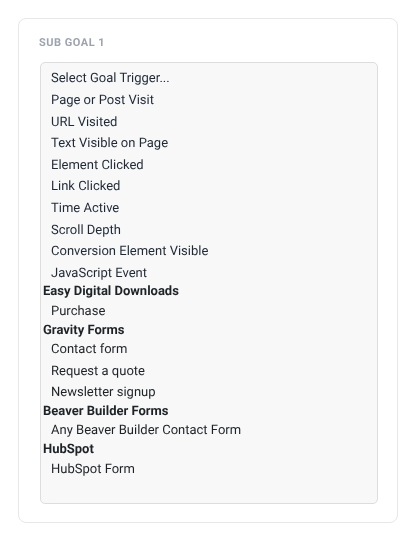
Step 5: Sub Goals (Teams plan feature)
AB Split Test allows you to set up multiple conversion goals, also referred to as subgoals, within a single test. This feature enables you to track various user interactions, providing a comprehensive understanding of how different variations impact specific actions on your site. For more information, please see: Multiple Conversion Goals - Subgoals
Step 6: Launch the Test!
- Review all settings to make sure everything looks correct.
- Click “Launch Test” to begin tracking.
- AB Split Test will now distribute visitors between variations and measure conversions automatically.