
Session Replays: watch a real visit
Teams Included on the Teams plan. Not available on the Lite version. Upgrade →
A result tells you a variation lost. A recording tells you why: the visitor never scrolled to it, or rage-clicked a button that isn’t a button. Session Replays plays back real visits on your site – movement, clicks, scrolling and page changes – and shows which variation the visitor saw.
It is entirely self-hosted. Recordings are written to files on your own server, not to your database and not to anyone else’s service.
How to set it up
- Settings → Heatmaps & Replays.
- Turn on Enable heatmaps (replays use the same journey data).
- Turn on Enable session replays.
- Under Page Selection, keep “Record all pages” or pick the pages you care about. Pages in a running test are always recorded.
Recordings appear under Split Tests → Session Replays, newest first. Filter by page, date, device size or test, then press play.
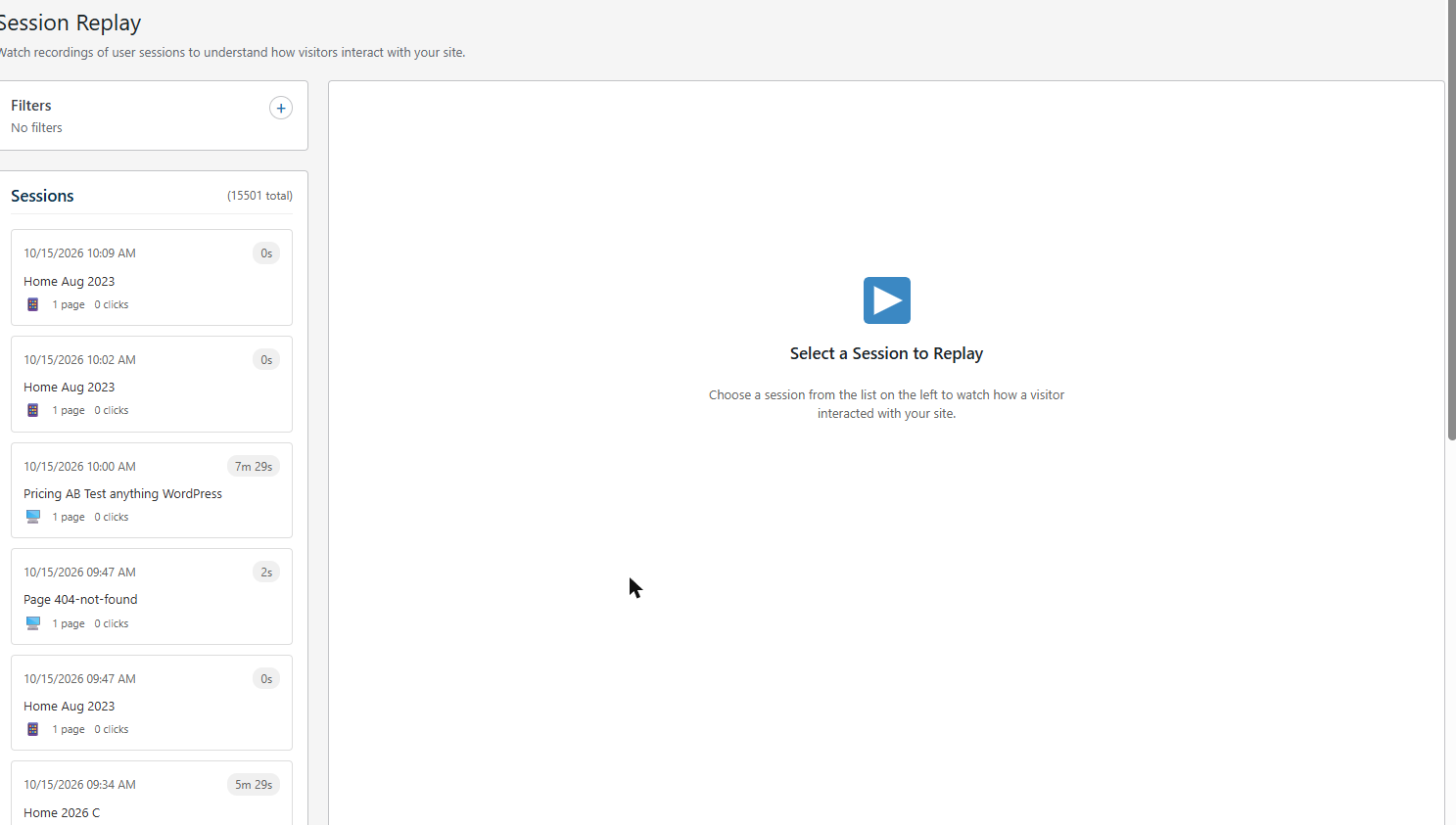
Filtering to the sessions worth watching
Most recordings are nothing: a visitor lands, reads nothing, leaves. Open Filters above the list and set Min Clicks to 1.
That one change is the difference between scrolling through hundreds of dead sessions and watching people who actually did something. Min Pages works the same way for visitors who moved through your site. Both default to Any, so you see everything until you narrow it.
From there, filter by page to study one template, by device size to see what phone visitors hit, or by test to watch only the people in a variation.
Ignoring bots and passers-by
Two settings keep the noise out before it is ever recorded:
- Bot Detection (Settings → Tracking & Privacy) drops crawlers, uptime monitors and headless browsers, and holds everyone else until they move, click, scroll or type. A visitor who never interacts never becomes a recording. See Bot Detection.
- Page Selection (Settings → Heatmaps & Replays) limits recording to the pages you care about, rather than every URL on the site.
Self-hosted, and not in your database
Recordings never leave your server. There is no third-party replay service, no account and no per-session pricing: the data is yours because it is on your hosting.
It is also kept out of your database. Sessions are written to compressed daily log files in wp-content/abst-journeys/, protected from direct access, in the same way WooCommerce and Wordfence keep their logs. Your wp_options and wp_postmeta tables stay the size they were, and a busy month of recordings doesn’t slow down every admin page load or bloat your backups.
A background job deletes files older than your retention setting, so the folder trims itself.
Sharing a recording
Press Share above the player to get a public link that needs no login – the same idea as a shared test report. Useful for showing a client the thing rather than describing it.
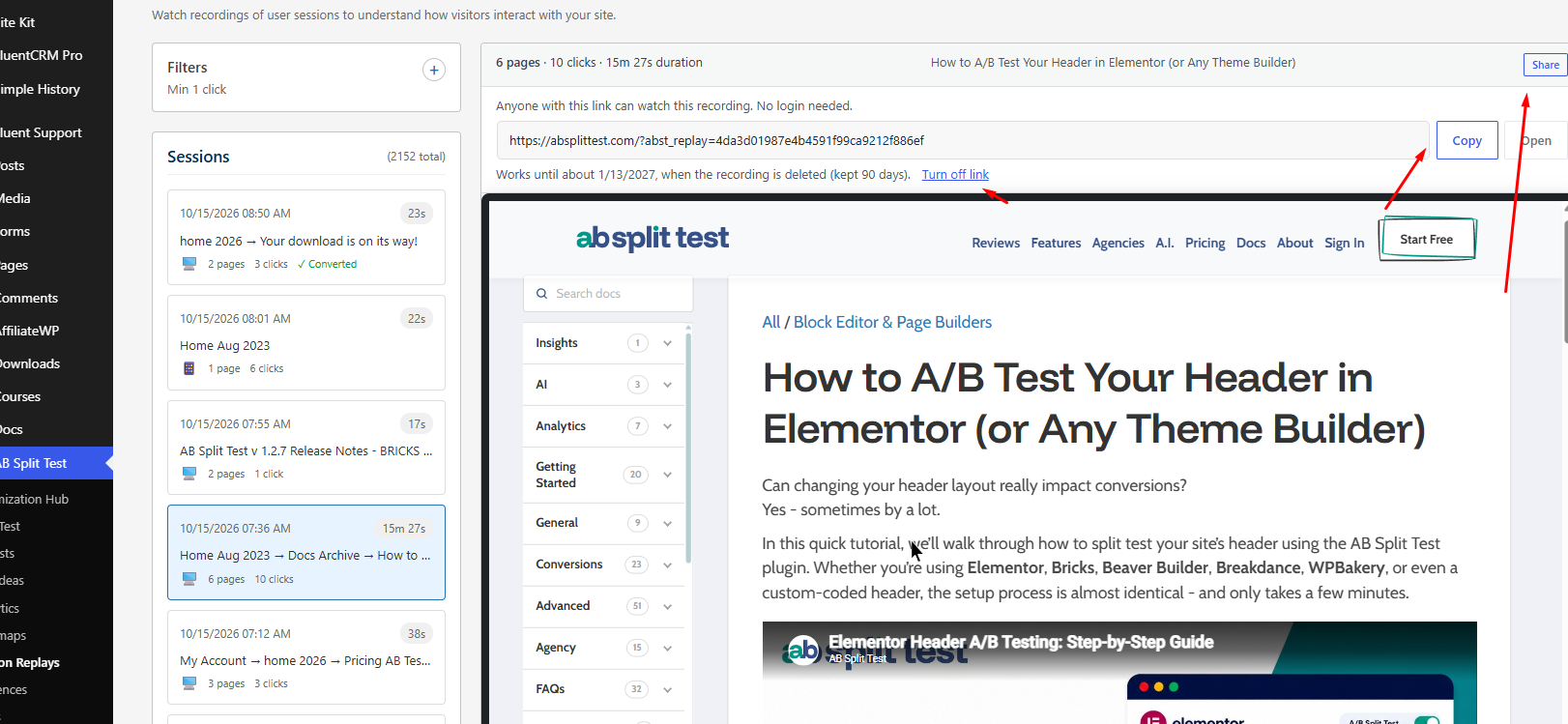
Copy takes the link, Open previews what the recipient sees, and Turn off link kills it. Sharing is included with paid plans.
The public player gets only what playback needs. No visitor ID, no referrer, no page query strings, no clicked link addresses.
Gotchas
- Share links age out with the recording. Events are read from your journey logs, so a link stops working once the recording passes your heatmap retention window.
- Watching a replay doesn’t make you a visitor. Viewers are excluded from results, and full page tests no longer redirect them.
- Recordings are not video. They are a timeline of events replayed over your live page, so a page you have since redesigned replays on the new design.
- External domains need “Heatmaps, Page Analytics & Session Replays on external domains” in Settings → Tracking & Privacy, and the external server must allow framing by your site.
Styling a shared recording
Shared pages take your white-label name, and abst_public_replay_css lets you add your own CSS to the public player (abst_public_report_css does the same for reports).
Related: Privacy-First Heatmaps · Public Reports · Visitor Lookup