
Disable AI Integration
Teams Included on the Teams plan. Not available on the Lite version. Upgrade →
Our AI browses the frontend pages of your website to create test suggestions and feedback. We do not send sales or analytics data to any external service, only your publicly viewable pages.
If you would still rather have no suggestions, or send no data anywhere, you can easily disable all AI-related functionality.
Turn it off in the settings
- Go to AB Split Test > Settings and open Testing.
- Scroll to AI Assist.
- Switch on Turn AI off, then save.
That single toggle disables every AI feature on the site. If you prefer, entering the word DISABLED into Your OpenAI API Key does the same thing and clears any key you had stored.
if you prefer, you can instead do it with code - by adding a filter
// disable always
add_filter('abst_disable_ai', function($disabled) {
    return true;
});


// or disable under certain conditions
add_filter('abst_disable_ai', function($disabled) {
    // Disable AI for anyone who can't manage options
    if (!current_user_can('manage_options')) {
        return true;
    }

    // Disable AI on specific pages
    if (is_page('members')) {
        return true;
    }

    // Keep existing value if none of the conditions are met
    return $disabled;
});
What happens after disabling?
- CROassist is turned OFF
- The AI toolbar prompt and automatic test suggestions will be turned off.
- No data is sent to any external service.
- Your data remains 100% local and private.
This is ideal for users who prefer not to use AI features or need to meet strict privacy requirements.
How do i know it’s disabled?
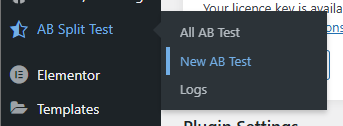
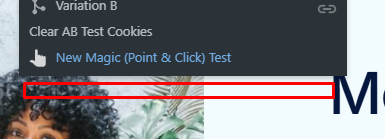
AI suggestion menu items will no longer display if you have correctly disabled
To re-enable AI Assist
- Switch Turn AI off back off under Settings > Testing > AI Assist
- If you used the
DISABLEDkeyword, clear the key field entirely, or replace it with your own valid OpenAI API key