
Debug Logs: what the plugin is actually doing
When a test is not behaving - a conversion that never records, a variation that never shows - the debug log tells you what AB Split Test decided and why, visit by visit.
Turning it on
- Go to AB Split Test > Settings, open Developer and find Debug Logging.
- Tick Enable logging and save.
- Reproduce the problem on the front end.
- Go to AB Split Test > Logs to read what happened.
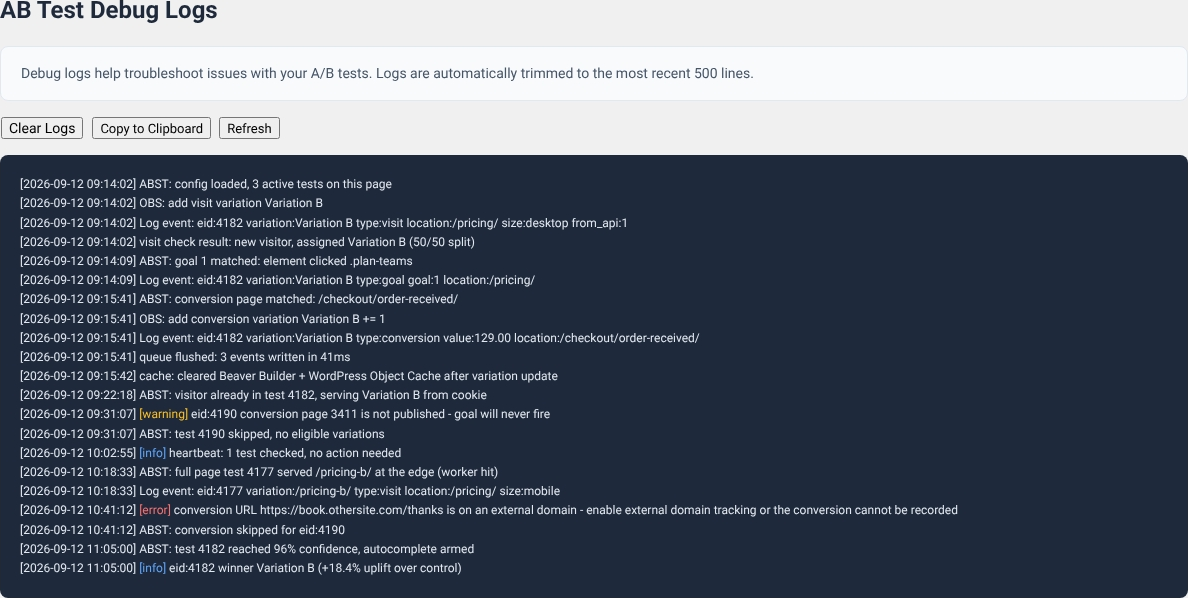
Reading it
Each line is timestamped and names the test by its ID. A healthy visit looks like a short story: the config loads, a variation is assigned, the visit is recorded, then later a goal or a conversion comes in.
visit check result- whether this was a new visitor and which variation they were given.Log event: eid:…- an event on its way to the database: the test, the variation, the type (visit, goal, conversion), the page and the device size.OBS: add…- the running totals being incremented.- [warning] and [error] lines are the ones to read first. They call out the usual culprits - a conversion page that is not published, a conversion URL on a domain you have not tracked, a test with no eligible variations.
The three buttons do what they say. Copy to Clipboard is the quickest way to send us something useful if you open a support ticket - paste the log rather than describing it.
Housekeeping
- The log is a
.logfile inwp-content/uploads/abst/logs/with a long random name, in a folder that blocks direct access on Apache and LiteSpeed servers. Read, copy or clear it from AB Split Test > Logs. It is trimmed to the most recent 500 lines automatically, so it cannot grow without limit. An oldabst_log.txtfile in your uploads folder is moved into the private log and deleted when you update. - Turn logging off again when you are done. It writes on every tracked visit, which is work your server does not need to do once the problem is solved - particularly on a high traffic site.
- Clearing the logs also clears the MCP audit log, if you have been using the MCP integration.
September 12, 2026 / /