
Visitor Lookup: Trace One Visitor Back to a Variation
This is an advanced feature. Most people will never need it. It is a one-visitor-at-a-time diagnostic tool, not a reporting feature - if you want variation data in your reports, use the API instead (see below).
Visitor Lookup answers a single question: this one person - which tests were they in, and which variation did they see?
It is useful when you have one specific interaction you want to trace back to a variation. A customer phoned and you want to know which headline they saw. An order came in and you want to check which pricing layout was live for that buyer. Someone raised a support ticket about a broken page and you want to know which version they were served.
When not to use it
This is deliberately a manual, one-at-a-time tool. It is the wrong choice if you want to:
- Compare variations. Use your normal test results, which already aggregate every visitor.
- Pull test data into another platform. Use the API instead - it returns the same information as JSON and can be automated.
- Export or analyse many visitors. Use the CSV export on the test itself.
What you need
- Enable advanced tracking turned on under AB Split Test → Settings → Tracking & Privacy → Advanced Tracking (UUID). Without it there are no per-visitor records to look up, and the page will tell you so.
- A WordPress account that can edit posts - Editor level or above.
Opening the page
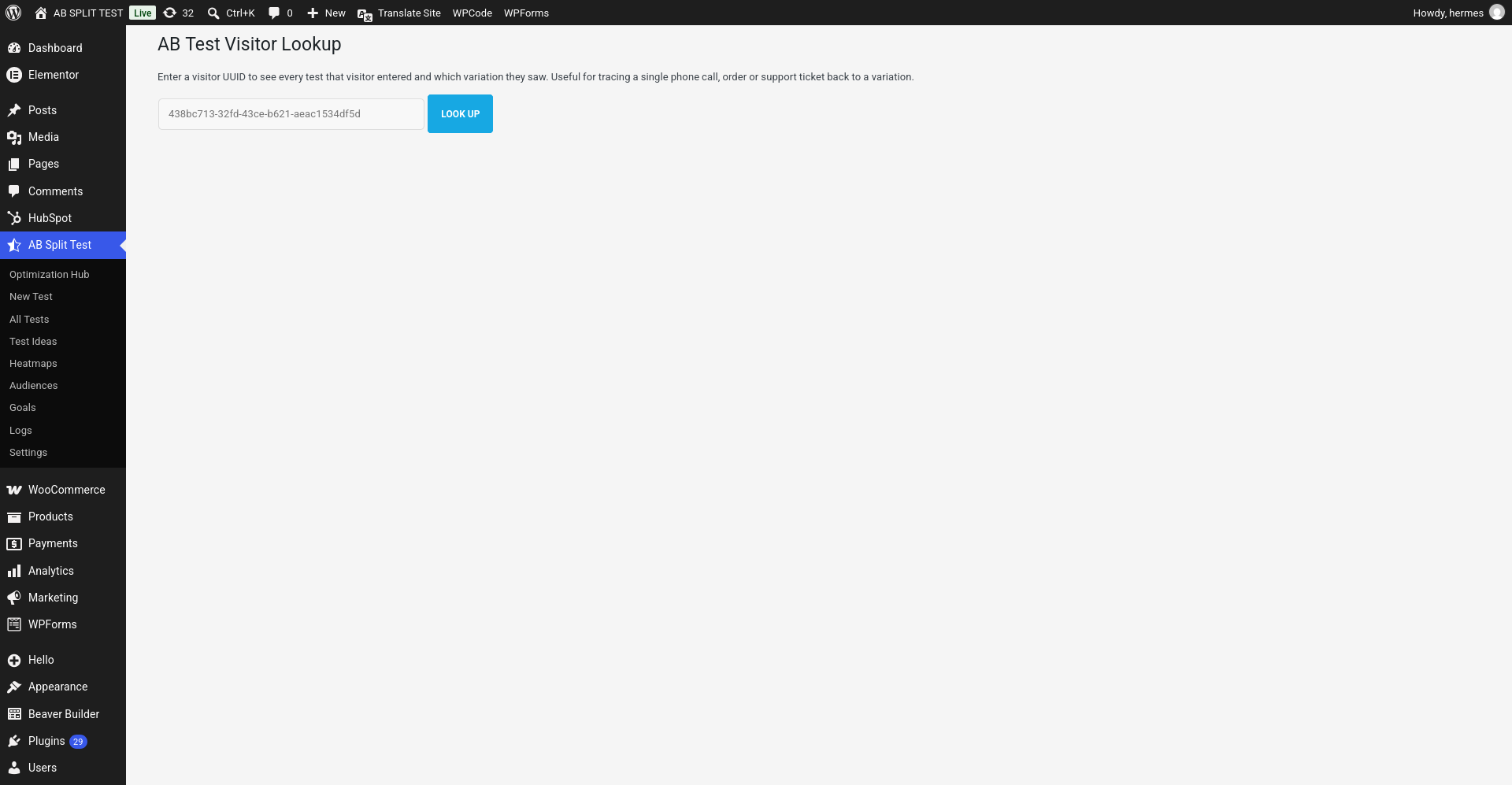
Visitor Lookup is not in the AB Split Test menu, because it is a niche tool and the menu is busy enough. You reach it by URL:
/wp-admin/edit.php?post_type=bt_experiments&page=abst-uuid-lookupReplace the start with your own site address. You can also jump straight to a result by adding the visitor ID:
/wp-admin/edit.php?post_type=bt_experiments&page=abst-uuid-lookup&uuid=438bc713-32fd-43ce-b621-aeac1534df5dBookmark the first one if you use it regularly.
The page being unlisted is convenience, not security. It is protected by the same permission check as the rest of your test data, so sharing the link with someone who is not logged in exposes nothing - they will get a permission error rather than visitor data.
Finding a visitor ID
A visitor ID looks like 438bc713-32fd-43ce-b621-aeac1534df5d. Where you get one depends on what you are tracing:
| Tracing | Where the ID is |
|---|---|
| A phone call | The AB Visitor ID custom field on the call, if you have set up the CallTrackingMetrics integration |
| A WooCommerce order | The _abuuid field on the order |
| Your own browser | Run abstGetAdvancedId() in the browser console on your site |
| A cross-domain visit | The abst_uuid parameter appended to the destination URL |
What you see
Enter an ID and you get one row per test that visitor entered:
- Test - the test name, linked to the test itself
- Variation - which version they were shown
- Converted - whether they completed that test’s primary goal
- Goals - any sub-goals they hit
- Device - mobile, tablet or desktop
- Last activity - the most recent recorded activity for that test. Conversions and goals update it, so it is not necessarily when they first entered.
If there is no record, the visitor never entered a test, or the ID is from a different site.
Doing this automatically
The same lookup is available as an API endpoint, which is what you want if another platform needs this data rather than a person:
GET /wp-json/abst/v1/user-data?uuid={visitor-uuid}It returns the same information as JSON, authenticated with a WordPress application password. The CallTrackingMetrics integration guide covers it in full, including worked examples for Zapier, Make, and CTM Lambda.
A note on privacy
The visitor ID is anonymous. It identifies a browser session, not a person - AB Split Test does not store names, email addresses, or phone numbers against it. What you see here is which tests that browser entered and what it was shown.