
External URL Testing
Teams Included on the Teams plan. Not available on the Lite version. Upgrade →
Run split tests where one or more variations are hosted outside of WordPress, on any external domain or page.
How it works
External URL Testing lets you redirect a portion of your traffic from a WordPress page to a page on a completely different domain. AB Split Test tracks visits and conversions across both pages using a lightweight embed script you add to the external page.
Step 1: Add your external domain
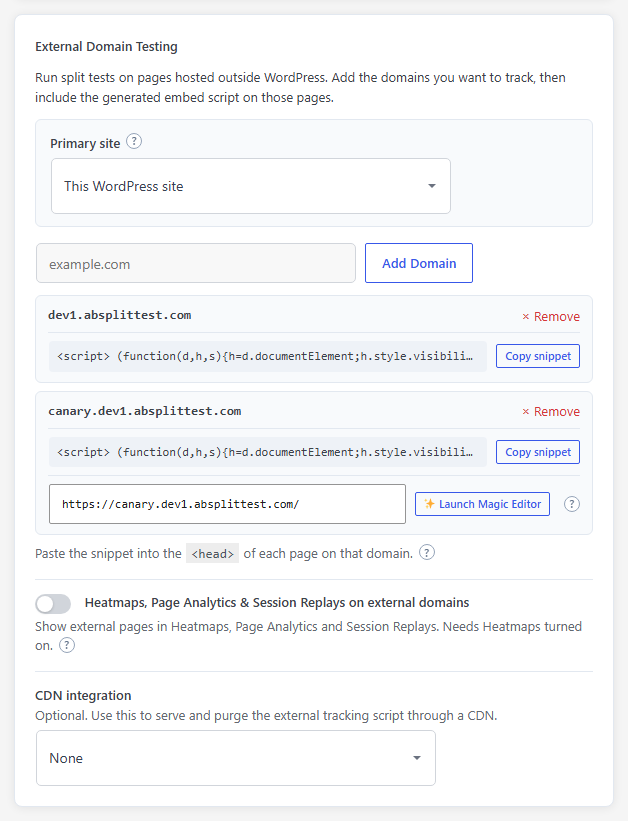
Before creating your test, you need to register the external domain inside AB Split Test.
- Go to AB Split Test > Settings > Tracking & Privacy
- Scroll to the External Domain Testing section
- Click Add Domain and enter your external domain (example:
example.com) - Click Copy snippet on that domain's card to copy its embed script
Step 2: Add the embed script to your external page
The script must go in the <head> section of every page you test on the external domain. Where to find this depends on your platform.
Look for a Custom Code, Tracking Code, or Head section in your page or site settings. Paste the script there and save.
<head> section, not the footer. Placing it in the footer may cause some visits to go untracked.Step 3: Create your Full Page test
- Go to AB Split Test > New Test and select Full Page as the test type
- Choose the WordPress page where your test begins
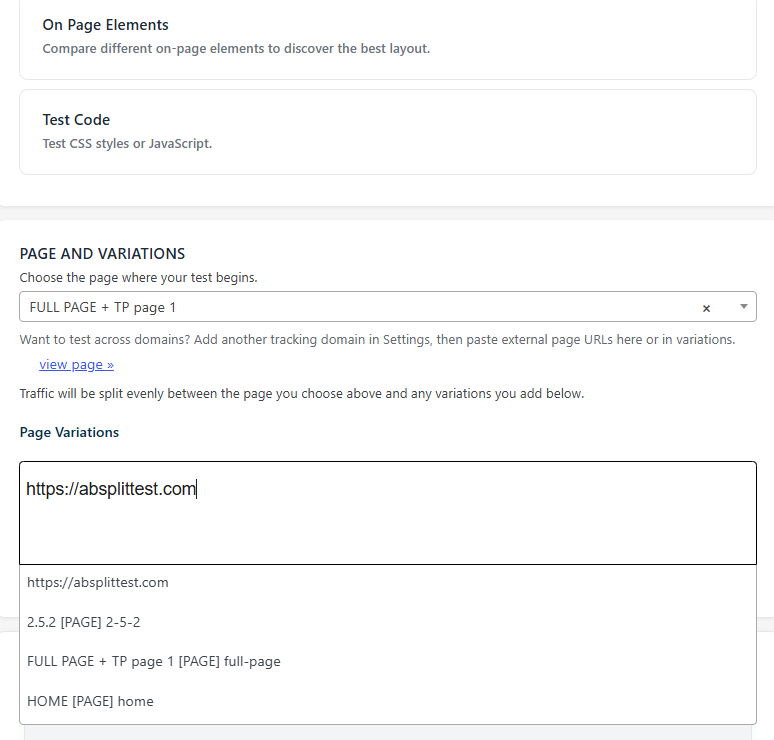
- In the Page Variations field, type or paste the full external URL including https://, for example
https://example.com/my-page - Wait for the suggestion box to appear, then click it to confirm the URL
- Set your conversion goal and save.
Step 4: Test in incognito
Always test while logged out of WordPress in an incognito window.
Step 5: Check your results dashboard
Go to AB Split Test > All Tests and open your test. You should see visits recording for both your original page and the external URL variation. Conversions will appear once the embed script fires on the external page and a goal is triggered.
External URL Testing vs Fingerprint Pixel
Both features handle cross-domain tracking but they work differently and are used in different situations.
External URL Testing is the recommended approach for most cross-domain tests. You set up the test inside AB Split Test, add your external domain in settings, install the embed script on the external page, and the plugin handles the redirect and tracking automatically. This is the cleanest setup and works out of the box for full page split tests across domains.
Fingerprint Pixel is a manual approach to cross-domain tracking. Instead of redirecting traffic, it identifies the same visitor across domains using browser fingerprinting, so conversions on a separate domain can still be attributed back to the correct test variation. This is useful when you cannot control the redirect, for example when linking to a third-party checkout page or an external booking system where you cannot set the variation URL directly.
In short: if you are running a full page test and can set the variation URL, use External URL Testing. If you are sending visitors to an external page you do not control the routing for, use the Fingerprint Pixel.
Troubleshooting
The external URL is not showing as a suggestion.
Make sure the domain is added in Settings > Tracking & Privacy > External Domain Testing. Also confirm you are typing the full URL including https://, for example https://yourdomain.com/page and not just yourdomain.com.
Visits are not recording on the external page.
Check that the embed script is in the head section of the external page. Also confirm you are testing in incognito.
Do I need a separate script for each page on the external domain?
No. One script per domain covers all pages on that domain. You only need a new script if you are testing on a completely different domain.
Will conversion goals work on the external page?
Most of them. Element clicks, link clicks, URL destination, time active, scroll depth, text appearing on the page, HubSpot form submissions and JavaScript conversions all fire on external pages. Goals that run inside WordPress do not: WooCommerce, Easy Digital Downloads, WordPress form plugins, server-side PHP or AJAX actions, and block or module triggers. For a form the script cannot see, push to window.abConvert from your form's own success callback. Order value is still detected on external pages, so Order Value Optimization works there too.
Settings says some visitors are getting an outdated copy of the tracking script.
If you used external domains before version 2.6.12, purge abstembed.js from your CDN or host cache once, then click Re-check now. After that the script refreshes itself every hour, so you do not need to purge it again.
Does the external page need to be on WordPress?
No. The external page can be on any platform or custom-built site. As long as you can add the embed script to the head of the page, it will work.