Google Analytics Split Test Configuration

Teams Included on the Teams plan. Not available on the Lite version. Upgrade →

Google Analytics 4 (GA4) split test events are now available on all paid AB Split Test plans.

What data is sent

We send an event to GA4 whenever a test is first seen (a visit) and when a test user reaches its goal (conversion)

gtag(‘event’, ‘ab_split_test’, {

‘test_name’: Your Test name,

‘test_variation’: Your variation Name,

‘test_event’: ‘visit’ or ‘conversion’

});

Example Data

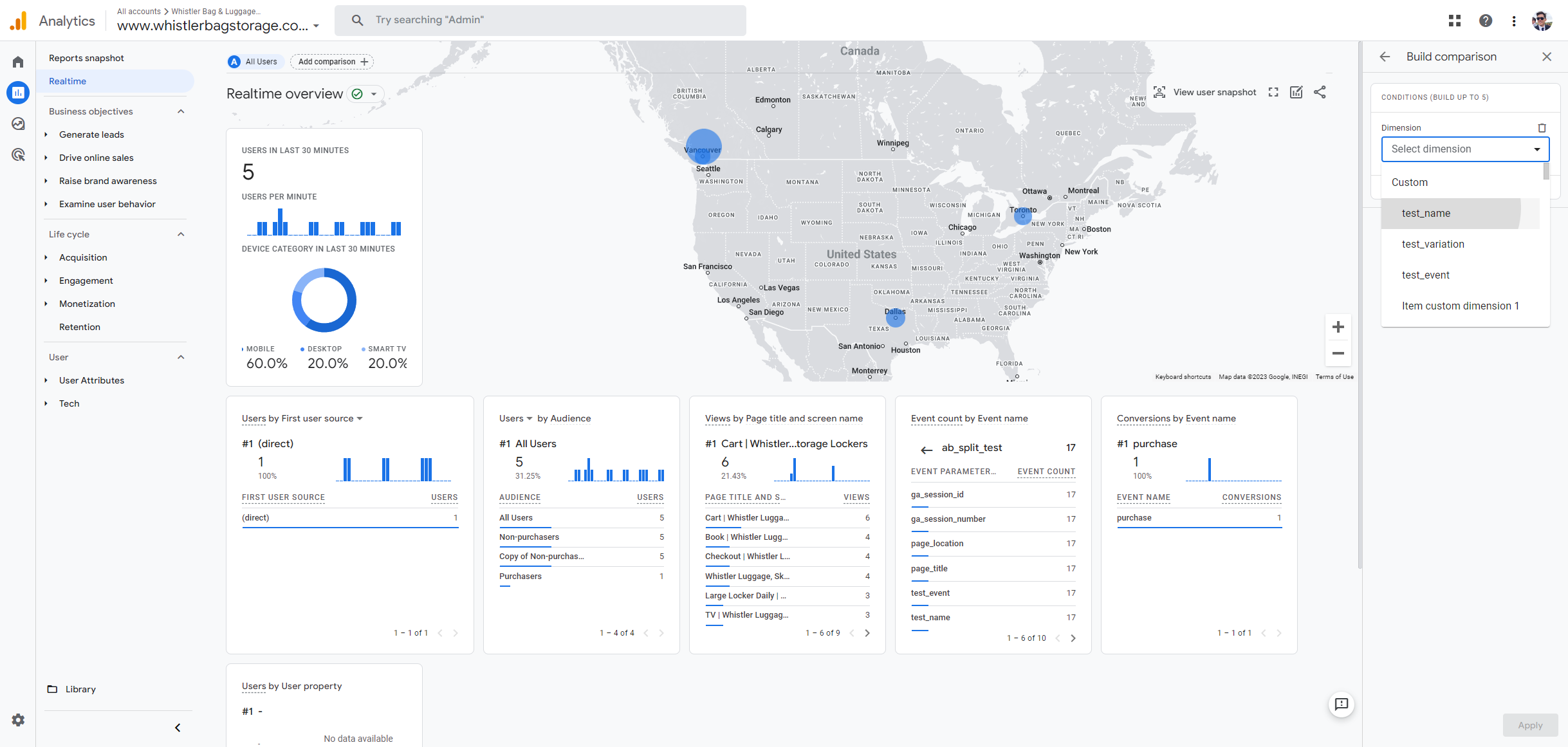
After activating AB Split test and creating a test, you will see the “ab_split_test”+” event showing up in your realtime dashboard.
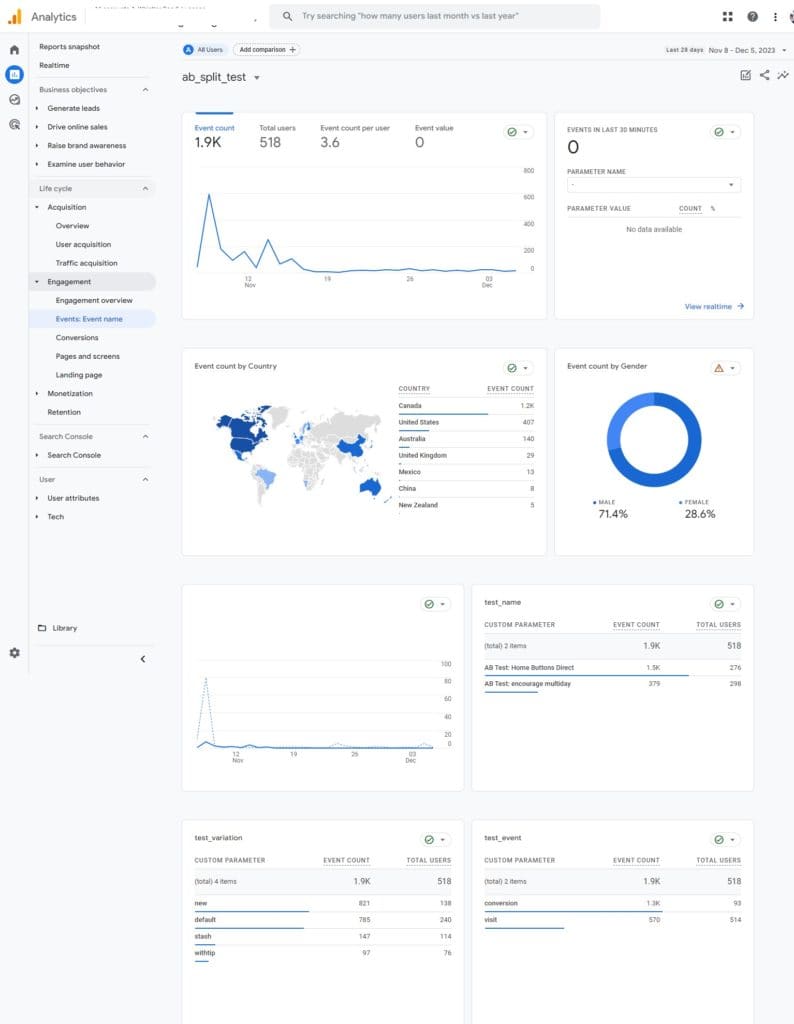
A screenshot of a web analytics dashboard displaying various statistics such as event count over time, geographical distribution, gender breakdown, and custom parameters.

‘ab_split_test’ Custom event type

In the above screenshot you see the “test_name”, test_event” and “test_variation” data. You need to follow the below steps to capture that information and enable in depth reporting on Google Analytics 4.

How to configure custom events in GA4

Go to settings

Go to settings
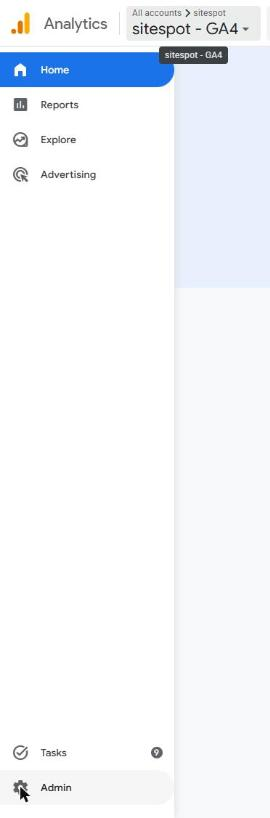
Google Analytics 4 left navigation with Admin at the bottom.

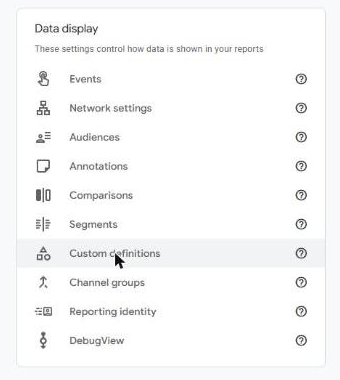
Click on Custom definitions

GA4 Admin, Data display card, with Custom definitions highlighted.

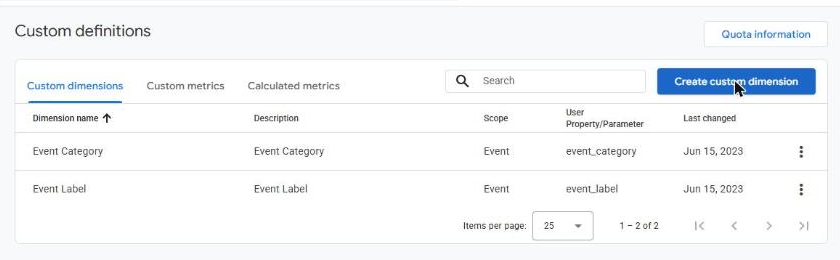
Click on Create custom dimension

GA4 Custom definitions page with the Create custom dimension button.

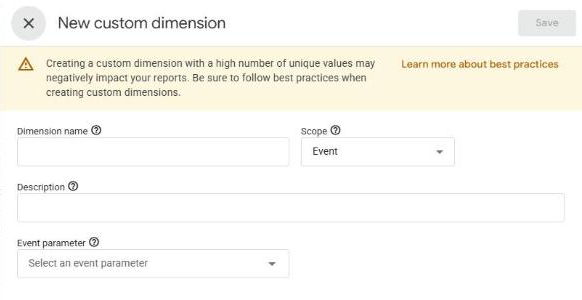
create first parameter test_name

GA4 New custom dimension panel with empty Dimension name and Event parameter fields.

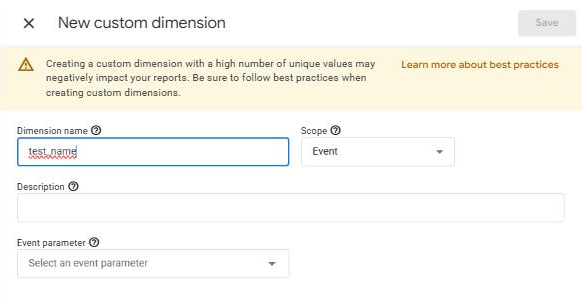
Whatever name you like for test_name

GA4 New custom dimension panel with test_name typed as the Dimension name.

Select Event parameter

test_name as the event parameter
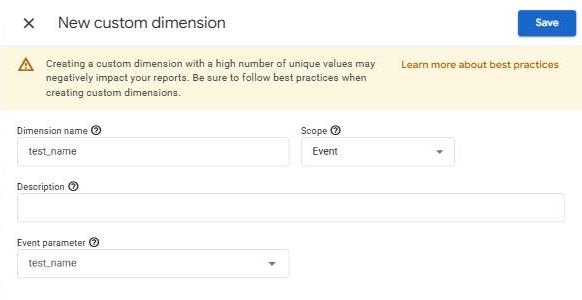
GA4 New custom dimension panel filled in: Dimension name test_name, Scope Event, Event parameter test_name, Save enabled.

Click on Save

GA4 New custom dimension panel filled in: Dimension name test_name, Scope Event, Event parameter test_name, Save enabled.

Click on Create custom dimension

GA4 Custom definitions page with the Create custom dimension button.

Click on Dimension name

GA4 New custom dimension panel with empty Dimension name and Event parameter fields.

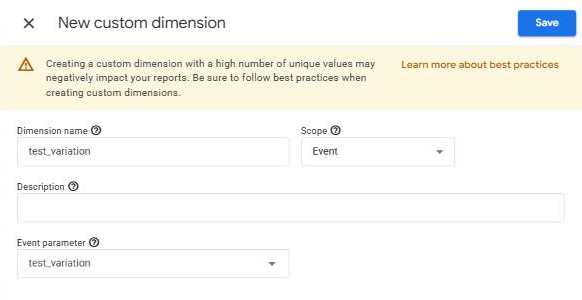
enter test_variation

GA4 New custom dimension panel filled in: Dimension name test_variation, Scope Event, Event parameter test_variation.

 Click on Event parameter

GA4 New custom dimension panel filled in: Dimension name test_variation, Scope Event, Event parameter test_variation.

enter test_variation

GA4 New custom dimension panel filled in: Dimension name test_variation, Scope Event, Event parameter test_variation.

Click on Save

GA4 New custom dimension panel filled in: Dimension name test_variation, Scope Event, Event parameter test_variation.

Click on Create custom dimension

GA4 Custom definitions page with the Create custom dimension button.

Click on Dimension name

GA4 New custom dimension panel with empty Dimension name and Event parameter fields.

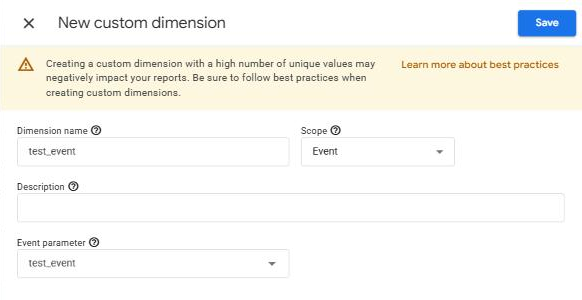
enter test_event

GA4 New custom dimension panel filled in: Dimension name test_event, Scope Event, Event parameter test_event.

Click on Event parameter

GA4 New custom dimension panel filled in: Dimension name test_event, Scope Event, Event parameter test_event.

Enter test_event

GA4 New custom dimension panel filled in: Dimension name test_event, Scope Event, Event parameter test_event.

Click on Save

GA4 New custom dimension panel filled in: Dimension name test_event, Scope Event, Event parameter test_event.

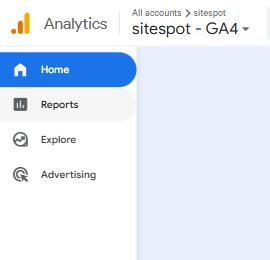
Go home and create reports as you li

GA4 left navigation with Home, Reports and Explore.

Click on test_name

Click on test_name


Leave a Comment

You must be logged in to post a comment.